Creative Cloud Apps Breakdown: Learn What Each Program Does (and Who It’s For)
Adobe’s software lineup is massive—covering nearly every creative field you can think of. Whether you’re into graphic design, illustration, digital art, photography, web design, content creation, or filmmaking, there’s an app tailored to your work. Recent AI upgrades, like Firefly’s Generative Video tool, have made these industry-standard tools easier for newcomers to pick up, while still giving pros all the power they need.
While some tools (like Adobe Express) are free, most Creative Cloud software requires a subscription. You can choose a single-app plan, the Photography Plan (which includes Photoshop and Lightroom—though subscription costs for this plan have gone up recently), or the full Creative Cloud suite (often with discount options). Note that the Substance 3D Collection sits outside this lineup: it needs its own separate subscription.
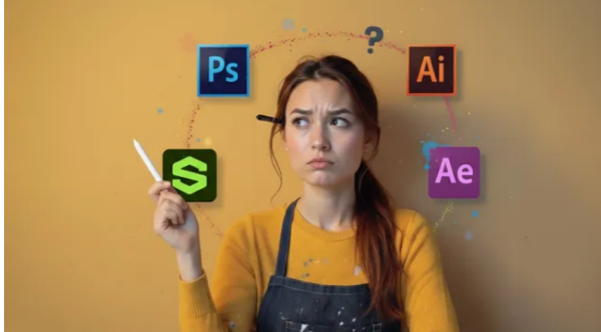
With over 20 apps to choose from, figuring out which ones you actually need can feel overwhelming. This guide cuts through the clutter. We’ve broken down the top 13 Adobe apps, highlighting their core functions, target users, and why they matter. Once you’ve picked your tools, you can dive into Photoshop or Illustrator tutorials, or check out our roundup of the best video editing software if you’re working on motion projects.
Adobe Software Guide: Which One Is Right for You?
With more than 20 key creative apps in Creative Cloud, choosing the right Adobe tool can feel like navigating a maze. Each app has a specialized role—some overlap (you’ll see a few on both “best digital art software” and “best graphic design software” lists)—but the trick is knowing where to start.
Designers, illustrators, and digital artists often use Photoshop for general work, but switch to Illustrator for logos and vector art, and InDesign for polished layouts (like magazines or brochures). If you want to draw or paint naturally, Fresco offers realistic brush effects on iPads and desktops, mimicking traditional paints. For photographers: start with Lightroom to organize and edit your shots, then jump to Photoshop for detailed retouching or compositing.

Video editors rely on Premiere Pro as their main hub, use After Effects for titles and visual effects, and Audition to refine sound. If you’re getting into 3D, the Substance 3D suite (now split into Painter, Designer, Stager, and Sampler) gives you everything needed to texture, light, and render scenes.
And for fast, AI-powered creation? Firefly and Adobe Express deliver instant generative magic—perfect for social media posts, moodboards, or quick concepts.
In short: Adobe has a tool for every creative field. Find the one that matches your workflow, then let the rest of the ecosystem connect around it.
01. Adobe Photoshop
Photo Editing (and So Much More)
Specifications
- Used for: Image editing/manipulation, photo retouching, graphic design, web/app prototyping, 3D modeling
- Platforms: Mac, Windows, iPad
- Today’s Best Deals$19.99/mth at Adobe
- $69.99/mth at Adobe
- $275.88/year at Adobe
Reasons to Buy
- Extremely feature-packed—handles nearly any image-related task
- Powerful tools for digital art creation
- Industry-standard software (widely used in professional settings)
Reasons to Avoid
- Relatively complex compared to simpler editing tools
- Steep learning curve for beginners
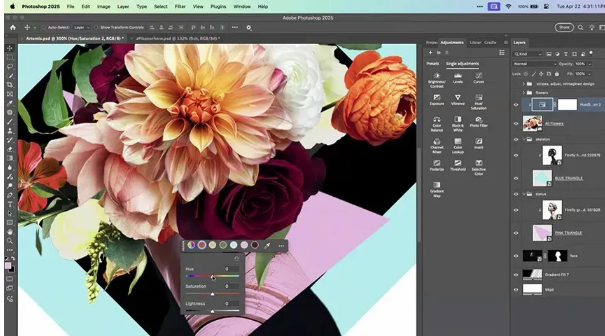
No one will be surprised to see Photoshop at the top of this list. If you need to edit images, it’s the industry standard—so much so that “Photoshop” has become a verb. But it’s not just for photo tweaks: it’s a full-fledged graphics editor, and with Firefly integration, its AI photo editing capabilities keep getting stronger.
For example, Photoshop lets you edit and compose raster images, graphics, and text across multiple layers; tweak and render text and vector graphics; and create or edit 3D graphics and video. This wide range of features means it’s used not just by photographers and retouchers, but also by digital artists, graphic designers, art directors, and even 3D designers and VFX artists. Just note that the Photography Plan (which includes Photoshop) has gotten more expensive lately.

Important to know: Photoshop works with raster graphics, unlike Illustrator (below), which uses vector graphics. To understand the difference, check out our guide to common file formats. You can also explore our picks for the best Photoshop alternatives or read our review of Photoshop for iPad.
02. Adobe Illustrator
The Industry Standard for Vector Graphics & Illustrations
Specifications
- Used for: Illustration, vector graphic design
- Platforms: Mac, Windows, iPad
- Today’s Best Deals$20.99/mth at Adobe
- $69.99/mth at Adobe
Reasons to Buy
- Industry-leading vector editing tool
- Useful AI features to speed up workflows
- Now available on iPad for on-the-go work
Reasons to Avoid
- More expensive than some competing vector tools
While Photoshop has broad, expanding capabilities, Illustrator is focused on specific tasks: it’s a drawing program built around vector graphics (which have less detail than raster graphics but can be scaled infinitely without losing quality).
Illustrator is most commonly used by artists, illustrators, and graphic designers to create everything from simple graphics (logos, icons, infographics) to complex illustrations. The iPad version of Illustrator was released recently, too—great for creators who work on the move. For more details, read our full Illustrator review, or build your skills with our roundup of Adobe Illustrator tutorials.
Firefly is now integrated here, too: you can use text prompts to generate vectors, patterns, backgrounds, and more. These AI-generated elements are perfect for kickstarting your creative process or brainstorming ideas.
03. Adobe Fresco
Adobe’s Digital Art App (Now on iPhone, Too)
Specifications
- Used for: Digital art creation
- Platforms: iOS (version 12.4 or later), Windows
- Today’s Best DealsView at Adobe
Reasons to Buy
- Simple, intuitive interface (great for beginners and pros)
- Now completely free to use
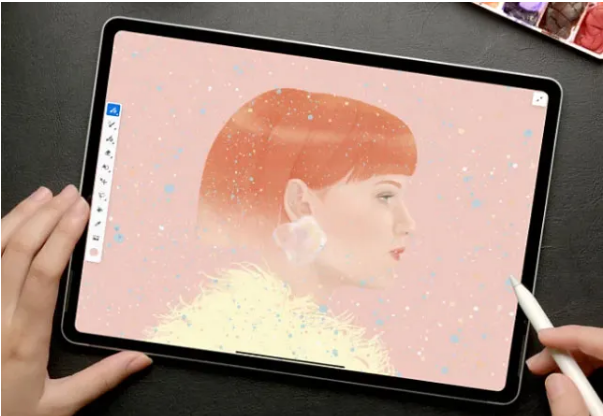
Adobe Fresco is a digital art app that borrows the best parts of other fine art programs—especially for iPads—and works on Windows, too. It combines the expressive power of Photoshop brushes with the precision of vector brushes. Its Live Brush feature lets you paint with watercolors and oils that blossom, blend, smear, and smudge just like traditional paints.
The interface is straightforward, making it easy for both new artists and seasoned pros to jump in. And the best part? It’s now totally free. For a deeper dive, check out our full Adobe Fresco review.
04. Adobe Express
Easy-to-Use Tool for Social Media Graphics & Videos
Specifications
- Used for: Creating social media graphics and short videos
- Platforms: Web, iOS, Android
- Today’s Best DealsView at Adobe
Reasons to Buy
- Super simple to use (no steep learning curve)
- Perfect for social media creators and small businesses
Reasons to Avoid
- Capabilities are fairly basic (not for complex designs)
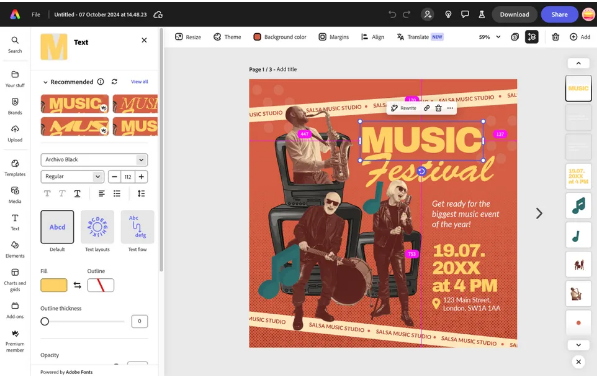
Adobe Express is Adobe’s “fast-track” tool for social media creators, marketers, and small businesses who need professional-looking visuals—without the learning curve of Photoshop or Illustrator. It excels at making short-form videos (for Instagram Reels, TikTok, or YouTube Shorts) as well as flyers, banners, social posts, and marketing graphics.
Templates let you get started in seconds, and drag-and-drop tools make tweaking layouts, colors, and typography easy. Express also integrates seamlessly with Adobe Stock, Adobe Fonts, and other Creative Cloud assets, giving you instant access to a huge library of images, icons, and typefaces.
In 2025, Adobe added Firefly AI directly to the app, bringing features like generative text effects, image variations, background removal, and smart layouts. These tools cut down on workflow time and spark creativity—read our hands-on Express review from Adobe MAX 2025 for more.
There’s a free version for casual users, while the premium plan unlocks full templates, stock content, and AI tools. Premium is available as a standalone subscription, or it’s included in Adobe’s All Apps Creative Cloud plan or some single-app plans.
05. Adobe InDesign
The Go-To Tool for Desktop Publishing
Specifications
- Used for: Desktop publishing (print and digital)
- Platforms: Mac, Windows
- Today’s Best Deals$20.99/mth at Adobe
Reasons to Buy
- Industry-standard for page layout and publishing
Reasons to Avoid
- Has a learning curve (takes time to master advanced features)
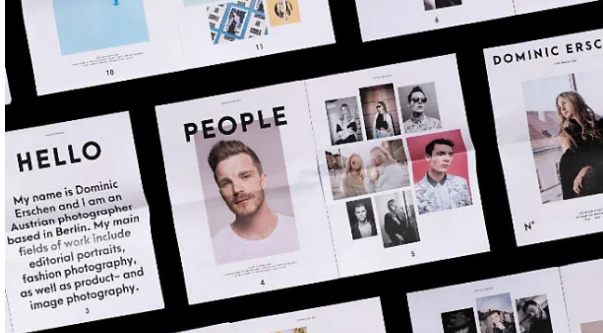
Adobe InDesign is still the industry’s top page layout and publishing tool, trusted by graphic designers, production artists, and publishers worldwide. While it started as a print tool, InDesign now has strong digital publishing features—making it just as useful for ebooks, interactive PDFs, presentations, and online magazines.
It shines at precision typography, multi-page layouts, and complex grid systems. You can build everything from flyers and brochures to full magazines, newspapers, and books—with consistent styling, master pages, and linked assets. Integration with Photoshop and Illustrator means images and vector graphics flow smoothly into your layouts, and Creative Cloud Libraries keep brand colors, logos, and assets consistent across projects.
2025 updates boosted collaboration features: multiple users can now co-edit documents in real time, and AI-powered content-aware layout tools automatically adjust text and images when pages change. Export options now cover print-ready PDFs, interactive EPUBs, and HTML5 outputs—making InDesign a versatile hub for both traditional and digital publishing.
Want to use it like a pro? Check out our InDesign tutorials.
Adobe Software for Video & Animation
06. Adobe Premiere Pro
Comprehensive Video Editing Tool
Specifications
- Used for: Video editing
- Platforms: Windows, Mac
- Today’s Best Deals$22.99/mth at Adobe
- $69.99/mth at Adobe
Reasons to Buy
- Powerful integration with other Adobe apps (After Effects, Audition, etc.)
Reasons to Avoid
- Steep learning curve (not ideal for total beginners)
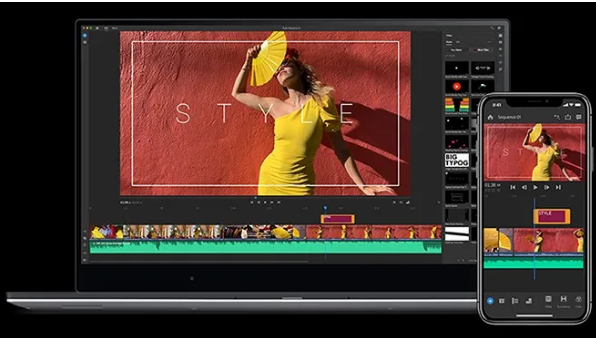
Premiere Pro is a full-featured video editing tool built around a visual timeline. It’s widely used in the film and TV industry, as well as by YouTubers and marketing/design studios—to edit everything from commercials and music videos to TV shows and feature films.
Key features include Auto Reframe (which intelligently reframes footage to keep action centered for different aspect ratios) and the ability to snap graphic elements to guides, each other, or tracked items.
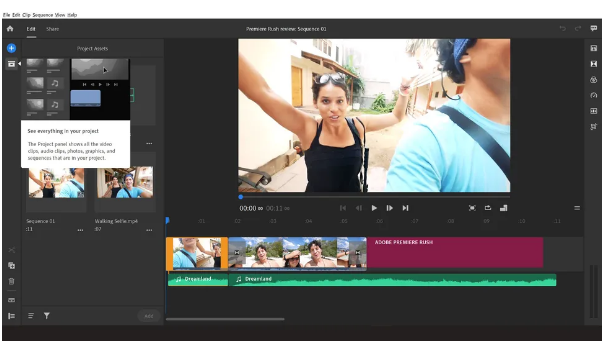
Premiere Pro is often used with other Creative Cloud apps: After Effects for VFX, Audition for sound, and Photoshop for image tweaks. Because it’s complex, Adobe released Premiere Rush—a lighter app—for beginners and casual users.
The latest version includes Firefly AI tools: you can clean up audio transcriptions and extend footage. It also adds Generative Video, which turns text prompts into 5-second clips.
07. Adobe After Effects
For Visual Effects, Motion Graphics, & Compositing
Specifications
- Used for: VFX, motion graphics, compositing
- Platforms: Mac, Windows
- Today’s Best Deals$20.99/mth at Adobe
- $52.99/mth at Adobe
Reasons to Buy
- Layer-based workflow (easy to build complex effects)
- Integration with Cinema 4D for 3D work
- AI-assisted tracking to save time
Reasons to Avoid
- Steep learning curve (requires practice to master)
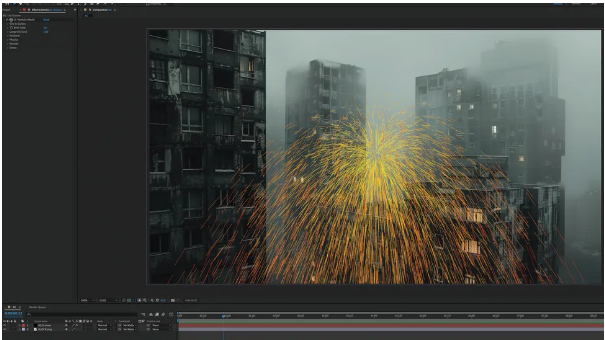
Adobe After Effects is the top tool for motion graphics, visual effects, and compositing—essential for creative pros. You wouldn’t edit an entire feature film here, but it excels at creating animations, website visuals, explainer videos, title sequences, and dynamic social content.
Its strength lies in layer-based compositing and procedural animation: you can build complex VFX (like explosions, lightning, or particle simulations) or 3D text animations. In post-production, it’s used for keying, tracking, rotoscoping, and compositing—giving filmmakers precise control over blending CGI, VFX, and live-action footage.
After Effects integrates seamlessly with the wider Adobe ecosystem: Photoshop and Illustrator graphics import easily, Premiere Pro timelines link directly, and Audition audio syncs without hassle. It also works well with Maxon Cinema 4D, so you can import 3D models and do advanced 3D compositing without leaving the app.
2025 updates added AI-assisted rotoscoping and object tracking (cutting down on tedious frame-by-frame work) and new GPU acceleration (making rendering complex effects faster). Learn the ropes with our After Effects tutorials, or check out our picks for the best After Effects alternatives.
08. Adobe Premiere Rush
Easy, Intuitive Video Editing
Specifications
- Used for: Video editing (focused on speed)
- Platforms: Mac, Windows, iOS, Android
- Today’s Best Deals$9.99/mth at Adobe
- $49.94/mth at Adobe
- $52.99/mth at Adobe
- $59.99/mth at Adobe
Reasons to Buy
- Focus on ease and speed (great for quick projects)
- Lets you upload directly to social media
Reasons to Avoid
- Not a full-featured video editor (no advanced effects)
Adobe Premiere Rush is a streamlined, all-in-one video editing app for creators who need polished content fast—especially for social media (Instagram, TikTok, YouTube Shorts). Unlike Premiere Pro, it prioritizes speed and simplicity: you can capture, edit, and upload video without getting stuck in complex timelines or settings.
It includes core editing tools: trimming, cropping, resizing, rotation, and basic color correction. For audio, you get sound balancing, noise reduction, and simple track sequencing. Templates, motion graphics, and preset transitions make it easy to create engaging clips—even if you’re not a pro editor.
A big perk is cloud-based syncing: all projects save online, so you can edit across devices seamlessly. Changes made on your phone or tablet automatically show up on your desktop—perfect for on-the-go editing.
Rush isn’t for heavy-duty production, but it integrates with Premiere Pro: you can start a project in Rush, then open it in Pro for advanced effects, color grading, or multi-camera edits.
Adobe Software for 3D & AI
09. Adobe Substance 3D Collection
Adobe’s 3D Tool Suite
Specifications
- Used for: Creating 3D content, AR experiences, virtual photography
- Platforms: Mac, Windows
- Today’s Best Deals$19.99/mth at Adobe
- $39.99/mth at Adobe
Reasons to Buy
- Complete 3D workflow (covers texturing, rendering, and more)
- Industry-leading texture tools
- Procedural workflows in Designer (great for repeatable patterns)
Reasons to Avoid
- Requires a separate subscription (not included in All Apps)
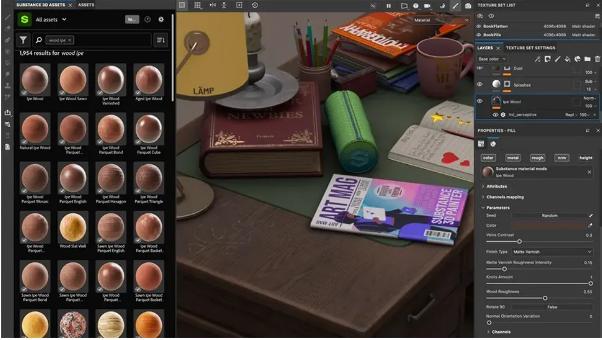
Adobe’s Substance 3D Collection is the industry-standard texturing suite for 3D artists—it was acquired by Adobe in 2019. The collection includes five apps (Painter, Sampler, Designer, Stager, Modeler) plus a large library of 3D assets. Unlike most Adobe tools, it’s not included in the Creative Cloud All Apps plan: you’ll need a separate subscription for the full collection or individual apps. (For more options, check our best 3D modeling software list.)
Adobe now offers a free Substance 3D Viewer (in beta) that lets you drag models into Photoshop as Smart Objects. Firefly AI is integrated across the suite, adding text-to-texture tools and generative backgrounds to speed up workflows.
- 3D Painter: Paint directly on 3D models with real-time PBR feedback. Smart materials, masks, and procedural brushes make realistic textures easy to create—plus Firefly lets you generate textures from text prompts.
- 3D Sampler: Turn photos or scans into texturable 3D materials. AI-assisted generative backgrounds help you experiment faster.
- 3D Designer: A node-based tool for creating complex, repeatable materials/patterns (essential for games and film).
- 3D Stager: Fast, professional rendering—compose, light, and render scenes without heavy 3D modeling software.
- 3D Modeler: Versatile 3D sculpting for concept assets, supporting VR and desktop workflows (bridges the gap to production-ready models).
Together, the Substance suite gives 3D artists a complete pipeline for texturing, rendering, and concept development—now boosted by AI and seamless Creative Cloud integration.
10. Adobe Firefly
Adobe’s Text-to-Image Generative AI Tool
Specifications
- Used for: Graphic design, video creation, texture generation
- Platforms: Web (plus integration in other Adobe apps)
- Today’s Best DealsView at Adobe
- $9.99/mth at Adobe
- $29.99/mth at Adobe
- $199.99/mth at Adobe
Reasons to Buy
- Generative AI for all media types (images, videos, textures)
- User-friendly interface
- Seamless integration with Creative Cloud
Reasons to Avoid
- Limited control for professional users (less customization than manual tools)
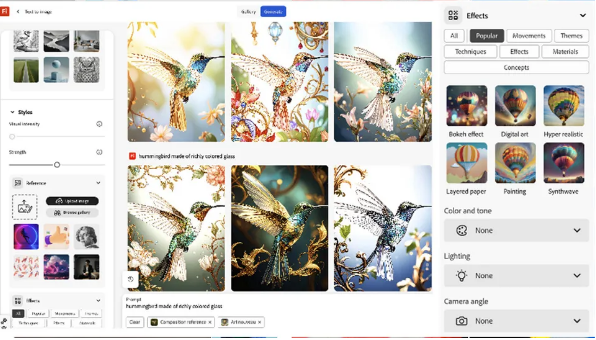
Adobe Firefly has grown from a simple image generator to a full creative assistant for designers, video editors, and content creators. It now includes video capabilities: generate short clips, animate still images, or create B-roll from text prompts. It’s perfect for marketers, social creators, and designers who want quick, polished motion content without leaving the Adobe ecosystem.

Firefly also powers image generation, text effects, and texture creation in apps like Photoshop, Illustrator, and the Substance 3D suite. Generative backgrounds and AI-assisted styling let you experiment fast—testing multiple visual ideas in minutes instead of hours.
Its biggest strength is integration: it works smoothly across Creative Cloud apps. Start a concept in Photoshop, enhance it with Firefly, then drop it into Premiere Pro or Express for video or social content. The interface is clean and intuitive, so even newcomers can get high-quality results quickly.
Firefly has a free version for casual use; the premium plan unlocks advanced video generation, higher-resolution outputs, and more stock assets. The standalone web app (firefly.adobe.com) has free and premium tiers, but some of its most useful features are in other apps—like Generative Fill/Expand in Photoshop or Generative Extend in Premiere Pro. Learn more with our guide to using Adobe Firefly for concept art.
11. Adobe Dimension
Create Photorealistic 3D Scenes & Images
Specifications
- Used for: Mockups, compositing, rendering photorealistic 3D images
- Platforms: Mac, Windows
- Today’s Best DealsView at Adobe
Reasons to Buy
- Easy-to-use 2D-to-3D workflow
- Integration with Photoshop and Illustrator
- Physically based rendering (for realistic visuals)
Reasons to Avoid
- Limited advanced 3D features (no GPU ray tracing)
- Rendering can be slow
Adobe Dimension was once a peek into the future: a bridge between 2D design and 3D visualization that made product mockups and scene renders easy. In 2025, it still delivers that simplicity: drag in models, add materials, light your scene, and you’ve got a polished visual ready for client presentations. For designers used to Photoshop and Illustrator, it’s a gentle way to dip into 3D.
But it’s showing its age. Adobe has shifted focus to the Substance 3D suite, so Dimension feels like a capable but overlooked tool. It lacks real GPU ray tracing and physics, and its material system is outdated compared to Painter or Stager. Rendering times, while improved, still lag behind newer 3D tools.
That said, Dimension’s Creative Cloud integration keeps it useful—especially for packaging, branding, and concept visuals where speed matters more than hyper-realism. If you’re new to 3D, it’s a friendly starting point. But if you want cinematic lighting or physically accurate materials, Substance is the way to go. Learn the basics with our “Get Started with Adobe Dimension” guide.
Adobe Software for Photography
12. Adobe Lightroom
Photo Organization & Editing Software
Specifications
- Used for: Image organization and editing
- Platforms: Windows, Mac, iOS, Android
- Today’s Best Deals$9.99/mth at Adobe
Reasons to Buy
- Fast, intuitive editing tools
- AI-assisted features (noise reduction, object removal)
- Seamless integration with Photoshop
Reasons to Avoid
- Can be resource-heavy (uses lots of computer memory)
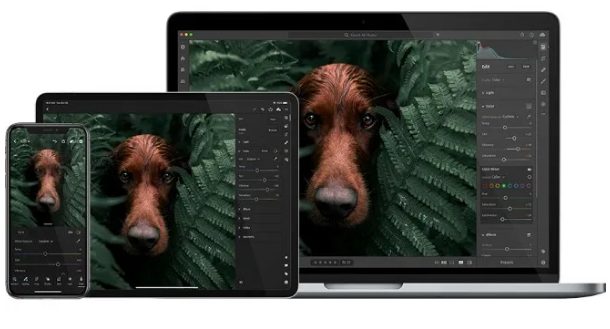
While Photoshop is for advanced image manipulation, Lightroom is essential for photographers who need to organize and edit large volumes of images quickly. Its strength is library management—perfect for studios, professional shoots, or anyone handling hundreds of files. Smart albums, keyword tagging, and collections keep workflows organized, and the clean interface makes browsing and culling fast.
Lightroom focuses on core adjustments: exposure, curves, hue, saturation, luminance, and color grading. Its simplicity speeds up routine editing, and 2025 AI tools add noise reduction, object removal, auto-masking, and selective local adjustments—helping photographers enhance images efficiently.
It supports most RAW formats and automatically recognizes most cameras and lenses. All edits are non-destructive: your original files stay intact, so you can experiment freely. Cloud sync across desktop, mobile, and web lets you work anywhere. And integration with Photoshop and other Creative Cloud apps means you can move from broad edits to detailed retouching seamlessly.
For pro photographers, Lightroom is a cornerstone of efficient, high-quality workflows. Read our full Lightroom review for more.
Adobe Software for Web, UX, & Collaboration
13. Adobe Dreamweaver
Veteran Tool for Code-Free (and Code-Friendly) Website Building
Specifications
- Used for: Creating websites
- Platforms: Mac, Windows
- Today’s Best DealsView at Adobe
Reasons to Buy
- Code assistance (great for beginners learning HTML/CSS)
- Dual interface (code view + live preview)
- Templates and starter layouts to speed up projects
Reasons to Avoid
- Not a pure no-code tool (still requires some familiarity with code)
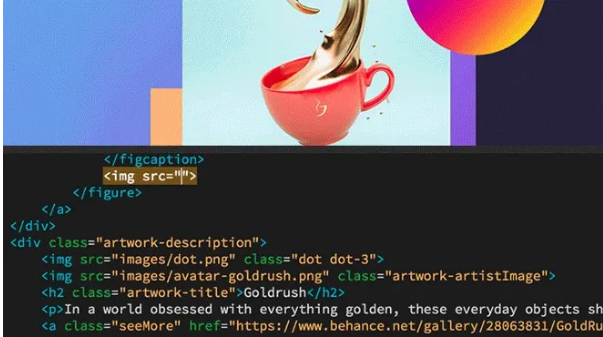
Adobe Dreamweaver has been a web design staple for decades, offering a hybrid approach: visual design combined with hand-coding. It’s for designers who want to build responsive websites fast—without losing control over HTML, CSS, or JavaScript. The dual interface (split between code view and live preview) lets you see edits in real time, making adjustments precise.
It now supports modern web standards (HTML5, CSS3, JavaScript frameworks) and integrates with Bootstrap and other responsive frameworks—ensuring your sites look good on desktops, tablets, and phones. Dreamweaver also offers code hints, syntax highlighting, and error checking—helpful for developers working on large projects.
While it’s not as trendy as low-code/no-code platforms, Dreamweaver is reliable for designers who value flexibility and code control. FTP integration and Creative Cloud syncing make deploying sites fast, and templates/starter layouts speed up small projects.
In 2025, the main reason to use Dreamweaver is if you’re already familiar with it and like its workflow. If not, check our list of the best website builders for more modern options.
How to Choose the Right Adobe Creative Cloud Plan
Picking a Creative Cloud plan boils down to matching tools to your workflow. Here’s how to decide:
- All Apps Plan: Best if you use multiple apps (e.g., switching between Photoshop, Illustrator, InDesign, or Premiere Pro). It gives you unrestricted access to the full suite, so you can move between tasks without limits.
- Single-App Plan: Smarter if you only use 1-2 apps regularly. You pay for exactly what you need—no wasting money on tools you’ll never touch.
- Free Plans/Trials: Invaluable for newcomers or anyone testing a new workflow. Try out interfaces, key features, and app integration before committing to a subscription.
Ultimately, choose a plan that fits how you work—not just the apps you think you “should” have. The right tools keep you productive while avoiding unnecessary complexity or cost.
Hidden Costs to Watch For
Even with the right plan, extras can add up. Here’s what to look out for:
- Cloud Storage: The All Apps plan comes with 100GB by default, but large photo libraries or video projects can exceed this. Extra storage costs more per month.
- Adobe Stock Assets: Adobe Fonts is included, but stock images, templates, and videos need a separate license. Budget for this if you rely on premium content.
- Premium AI Features: Some AI tools (like Firefly’s advanced video generation) are only unlocked on paid tiers—free versions have limits.
- Separate Subscriptions: Suites like Substance 3D Collection aren’t included in the All Apps plan. You’ll need a separate subscription if 3D is part of your workflow.
The fix: Plan for extras upfront. Knowing storage limits, add-on costs, and premium features ensures no billing surprises.
Frequently Asked Questions About Adobe Software
Are there free Adobe apps?
Yes. Adobe Express has a free plan with templates and basic tools, and Firefly offers limited free access. Most other apps require a paid subscription.
Can I use Adobe software on multiple devices?
Most Creative Cloud apps let you install on two computers and sync across desktops, laptops, tablets, and phones. You can switch devices without losing work.
What are Adobe’s AI tools, and how do they help?
AI features (like Firefly generative tools or Photoshop’s Neural Filters) speed up creative tasks. They can generate images, remove objects, enhance photos, or create short videos—cutting down on repetitive work.
Is Adobe software suitable for beginners?
Some apps (Express, Lightroom) are beginner-friendly. Others (Photoshop, After Effects, Dreamweaver) have steeper learning curves, but tutorials and templates make getting started easier.