
Learn how to use Google Sites to create a professional-looking website quickly—no coding required and completely free!
Looking to build an impressive portfolio or a simple business website without spending a dime? Google Sites might be the perfect solution for you. Originally launched as JotSpot in 2006, Google acquired and relaunched the platform in 2008. Since then, it’s evolved into a user-friendly tool that integrates seamlessly with other Google apps. But is it a strong choice for building a business website today?
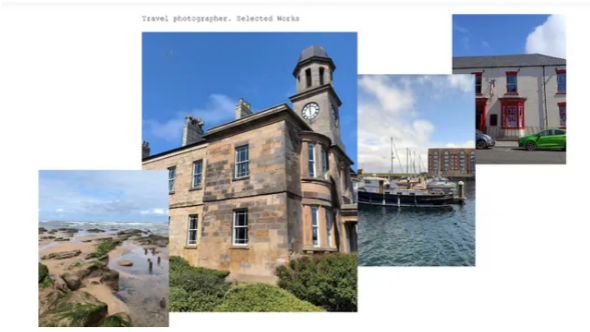
While Google Sites isn’t packed with advanced features, it stands out for its simplicity. You don’t need any technical skills to get started. Whether you’re showcasing photography, artwork, written content, or professional accomplishments, Google Sites makes it easy. And if you already use tools like Google Drive or Docs, you’ll feel right at home.
Freelancers, artists, and small businesses can benefit from its free hosting, customizable templates, and drag-and-drop editor. In just a few steps, you can have a clean, functional website ready to share—helping you attract new clients and grow your audience.
Step 1: Go to Google Sites
Start by visiting sites.google.com.
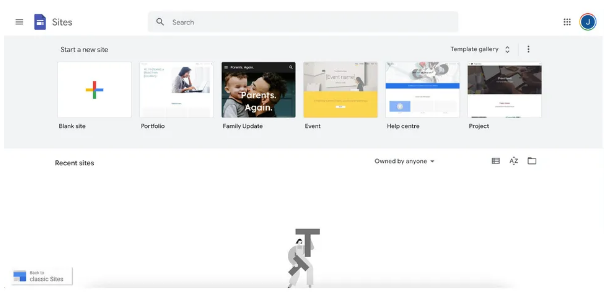
You’ll see a clean, intuitive dashboard that looks a lot like Google Drive. If you don’t already have a Google account, you’ll need to sign up—but chances are, you’ve got one.
Step 2: Choose a Template (or Start Fresh)
Once you’re in, you’ll land on the main dashboard. Click the + icon to start a new site.
Google offers a variety of templates—like ones for portfolios, events, or team projects. Browse through them using the “Template gallery” on the right.
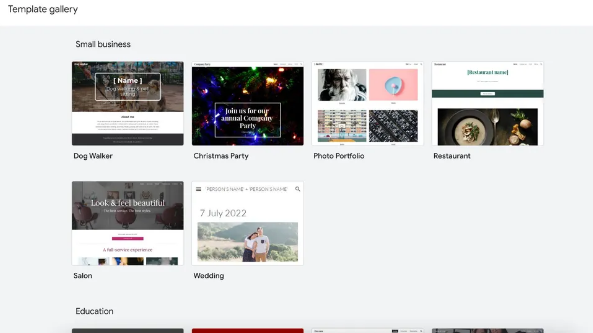
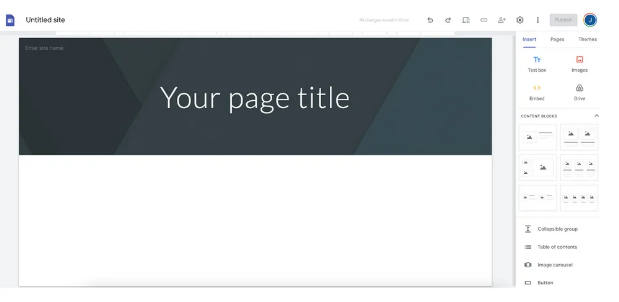
For this guide, let’s say we’re building a photography portfolio. Even though there’s a template for that, we’ll start with a blank one to customize everything from scratch.Once you’re in the editor, name your site using the field in the top-left corner.
Step 3: Create Pages and Subpages
Think about how many pages you’ll need. A wedding info site might only need one page, while a restaurant site could use several: Menu, Hours, Contact, etc.
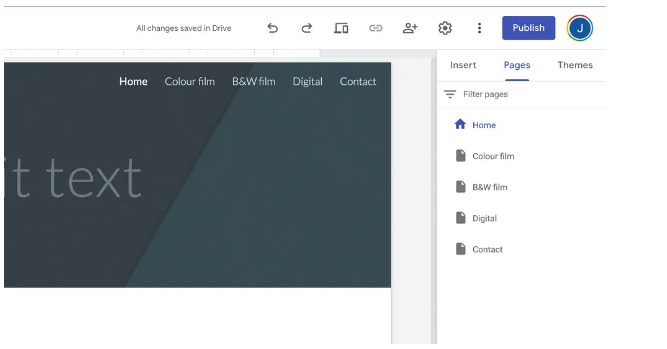
For our photo portfolio, we’ll create pages for Color Film, Black & White Film, Digital, and a Contact page.To add pages, open the Pages tab on the right and click Add Page.
Your new pages will appear in the top navigation bar automatically. Need to nest pages? Click the three dots next to any page and select Add Subpage—these won’t show in the main menu.
You can also customize your header here. Replace the default image, adjust its size, or remove it entirely using the Header type option.
Step 4: Add Your Content
Now it’s time to bring your site to life.
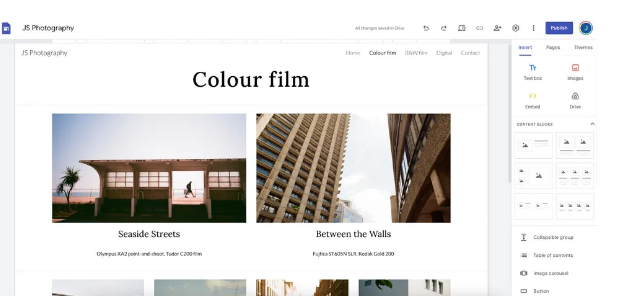
Since this is a photography site, we’ll focus on visuals. If you don’t have your own photos yet, there are plenty of free stock image sites available.Google Sites uses a block-based system. Click Insert in the right-hand menu to add text boxes, images, embed videos, or even content from Google Drive.
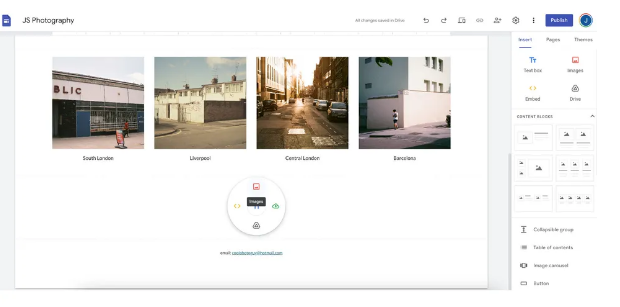
You can drag and drop blocks anywhere on the page. Want to add something quickly? Just double-click any empty spot.
Step 5: Include Extra Features
The Insert menu also lets you add helpful tools like Google Maps, YouTube videos, calendars, or forms.
Other useful options include collapsible text sections, image carousels, and clickable buttons.
You can even add social media links—just paste your profile URL, and Google Sites will display the right logo.
Step 6: Preview and Publish
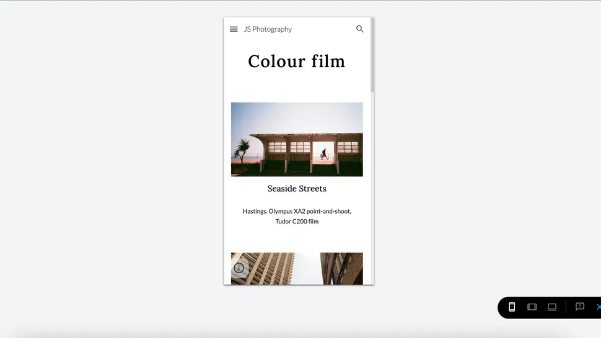
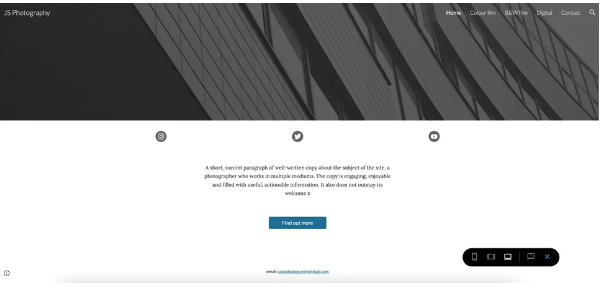
Before going live, use the Preview button (top-right) to see how your site looks on desktop, tablet, and mobile.
When you’re ready, click Publish.
You’ll get a free web address like: sites.google.com/view/your-site-name
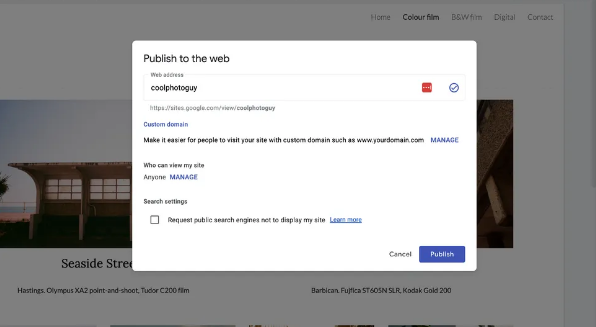
Want to use a custom domain? You can connect one here.Pro tip: Before sharing publicly, you can restrict visibility to people with the link or a select group—great for gathering feedback from friends or colleagues.
Once everything’s set, hit Publish—you’re live!
Frequently Asked Questions
Is Google Sites really free?
Yes! You can use it with any Google account—personal or business—at no cost. There are no hosting fees, and you can create up to 10,000 pages per site and upload 15,000 images. It’s a budget-friendly option for portfolios, small businesses, or personal sites.
What is Google Sites best for?
It’s ideal for portfolios, small business sites, event pages, team hubs, and wikis. Thanks to its Google Workspace integration, it’s also great for internal company sites. While it’s not built for e-commerce, you can embed tools like Ecwid to sell products.
What are the limitations?
Google Sites keeps things simple, which means fewer templates and customization options. You can’t edit the HTML or CSS, and SEO features are basic—limited to titles, headings, and image tags. It may not help you rank #1 on Google, but it’s a solid, free option for getting online fast.